About Maga Makeover Games
Play free beauty makeover games instantly at Maga Makeover Games — no
download, no sign-up, with new makeovers added regularly.
Maga Makeover Games is a free online beauty site built around
makeup, dress up, nail salon, and hairstyle games. From quick makeup looks to
full fashion makeovers, every title plays right in your browser — with no download,
no install, and no sign-up — so you can start in seconds on your phone, tablet,
or computer.
Makeup Games
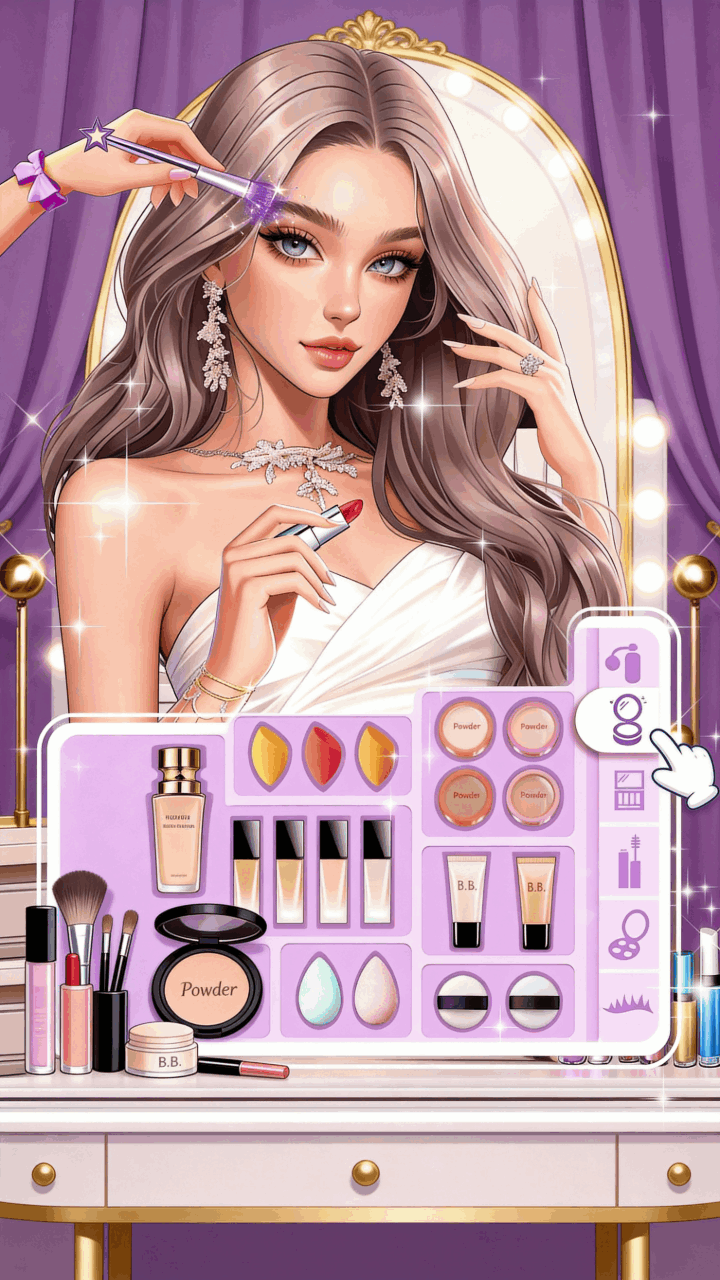
Our makeup games let you play with foundation, eyeshadow, lipstick, and
blush to build a complete look. Whether you want a soft everyday glow or a
bold red-carpet finish, they make it easy to try a full beauty makeover
step by step.
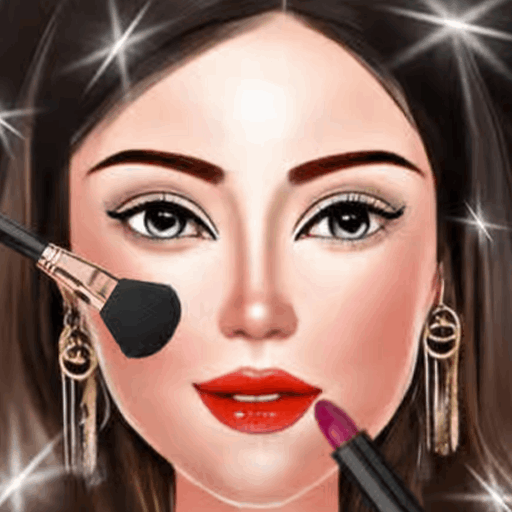
Start with a fresh face and tap through each beauty step — cleanse and
prep the skin, then add foundation, eyeshadow, blush, and lipstick before
picking a glam outfit and accessories. Mix and match every detail until
your model is ready for the spotlight.
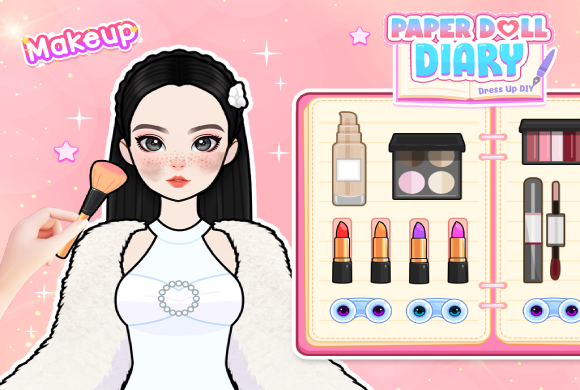
For a softer, scrapbook-style take on makeup and styling, try Paper Doll
Diary. Dress and make over a paper doll page by page — swap outfits, pick
makeup and hair, then arrange stickers and accessories to design your own
diary look. It's a relaxed, creative way to play with combinations and
build a beauty look that's entirely yours.
Dress Up Games
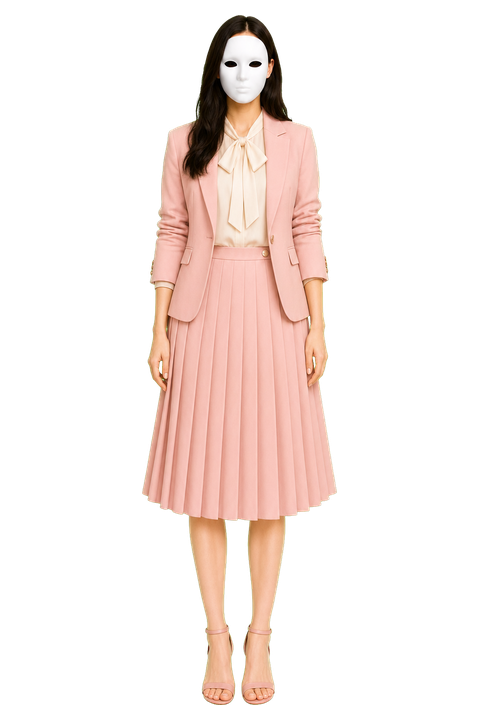
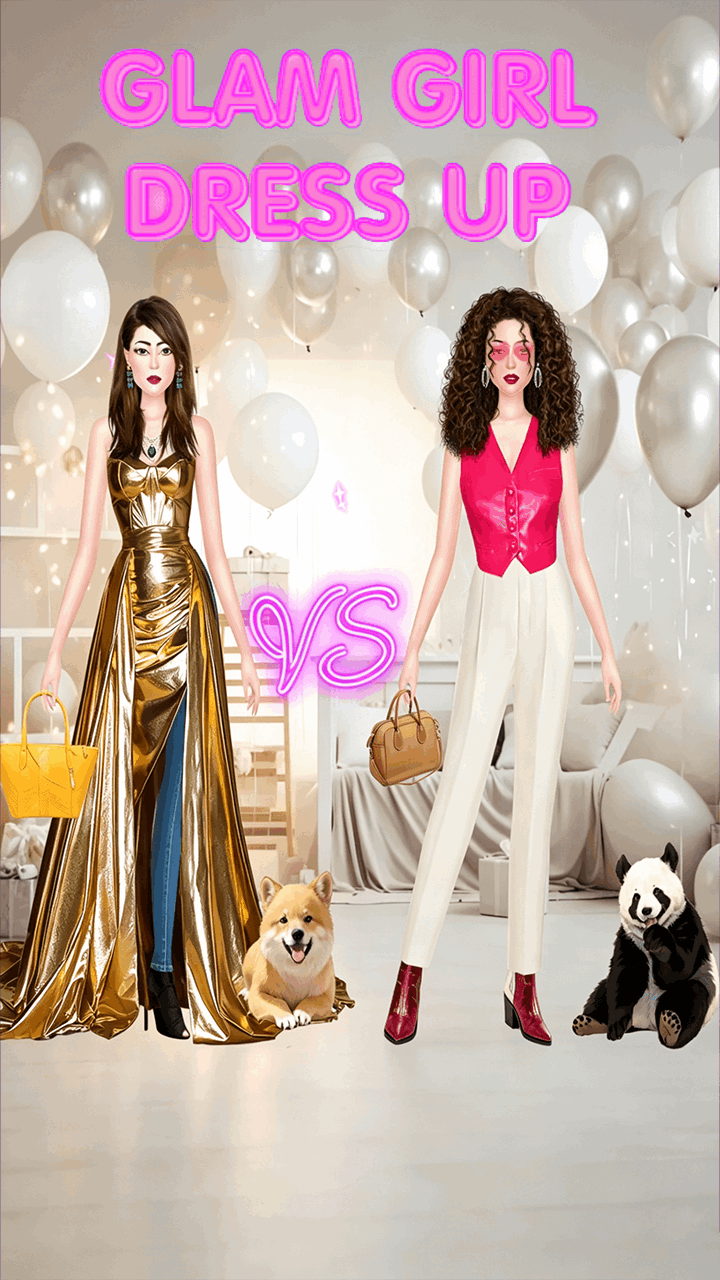
Mix and match outfits, shoes, and accessories to style a character for any
season, party, or occasion — swap pieces until the fashion look feels just
right.
Dress your own fairy-tale princess by browsing wardrobes of gowns, crowns,
shoes, and magical accessories. Tap to try on different dresses and color
themes, then style hair and jewelry to build a complete royal look you can
restyle as many times as you like.
Nail Salon Games
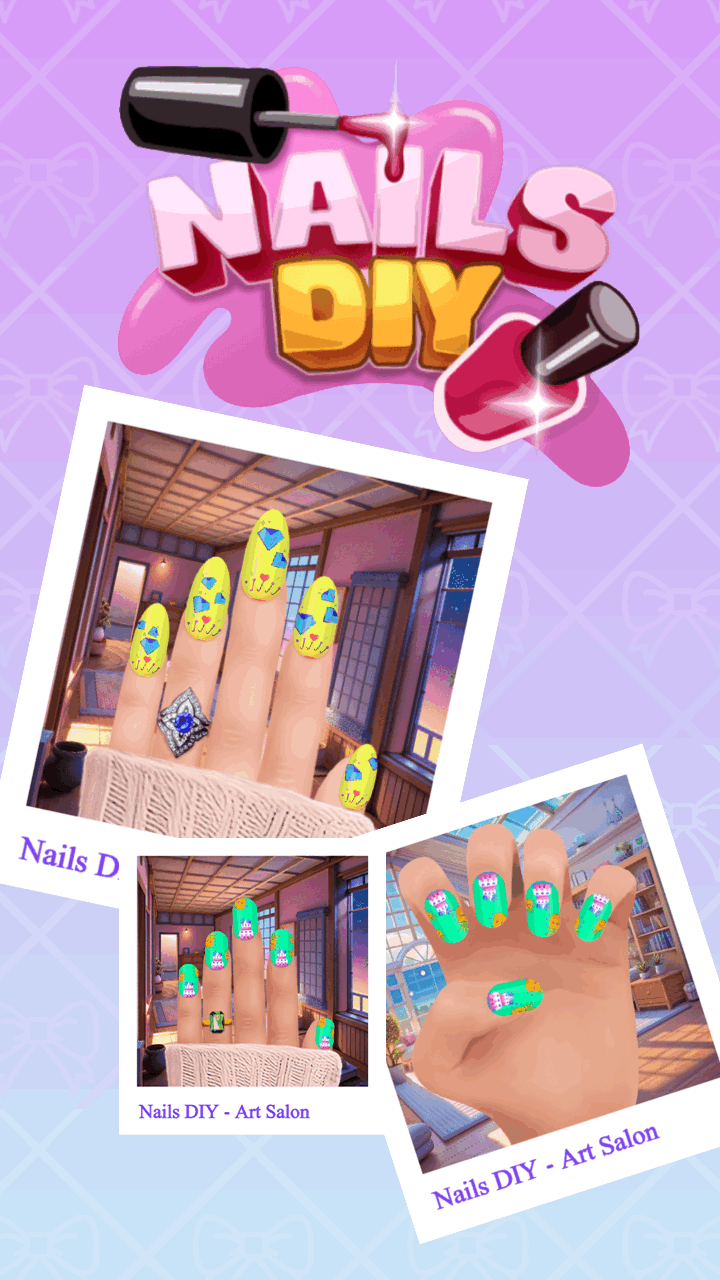
In our nail salon games you design manicures, paint detailed nail art, and
run your own beauty salon, choosing colors, shapes, gems, and patterns to
create a one-of-a-kind set of nails.
Run a festive manicure session step by step — soak and trim the nails,
shape them, then paint holiday colors and add Christmas-themed stickers,
glitter, and gems. Finish each hand with a cozy seasonal design that's all
your own.
Hairstyle Games
Hairstyle games put you in the stylist's chair to cut, color, braid, and
style hair, giving each character a fresh hair makeover to match their
outfit and mood.
Play stylist for a social-media star and decide each look with a fun
"left or right" choice — compare hairstyles, colors, makeup, and outfits,
then pick the side you like best to create share-worthy blogger makeovers.
Train your style sense while you play
Beauty makeover games are more than a quick way to pass time — they're a
low-pressure way to sharpen your eye for style. Every look you build is a
small lesson in what works: which colors flatter a skin tone, how a
lipstick shade shifts a whole mood, and when an outfit needs one more
accessory or one less. The more combinations you try, the faster you start
to notice balance, proportion, and color harmony in real life too.
Makeup games are perfect for practicing combinations you might hesitate to
try on yourself. Layer a bold eyeshadow with a soft lip, test a glam
red-carpet face against a fresh everyday glow, then redo it in seconds if
it isn't right. There's no wasted product and no commitment — just room to
experiment until you understand which pairings actually feel like you.
Where virtual styling meets real life
Dress up and makeover games blur the line between fantasy and your real
wardrobe. The outfits you assemble here — a winter party look, a beach-day
fit, a runway-ready ensemble — become inspiration you can recreate with
clothes you already own. Save the combinations you love and treat them as a
personal lookbook for your next event, photo, or shopping trip.
Best of all, virtual dress up lets you wear what everyday life usually puts
out of reach. Try on designer brands, statement gowns, dramatic heels, and
seasonal trends without a price tag, a fitting room, or a single regret.
Mix luxury pieces with playful ones, push a style further than you ever
would in public, and discover the looks that genuinely suit you — all
risk-free, right in your browser.
Why play at Maga Makeover Games?
- Always free — every game is free to play, with nothing to
buy first.
- No download or install — everything runs instantly in your
browser.
- No account needed — start playing without signing up.
- Mobile & desktop — play on iPhone, Android, tablet, or
computer.
- Hand-picked & updated — we curate the collection and
add new makeovers regularly.
Want to know how we handle data, cookies, and advertising? Read our
Privacy Policy and Terms of Use, or learn more about Maga Makeover Games.
How to play
Pick any game from the homepage or the browse page, wait a moment for it to load, and play directly in your browser. Maga
Makeover Games saves your recently played titles on your device, so it is
easy to come back and finish your favorite makeup looks.